Transform Your Winter Designs with the Photoshop Snowflake Brushes Bundle Pack
Creating authentic winter atmospheres in digital art often presents a unique set of challenges. Whether you are designing holiday marketing materials, crafting social media graphics for a seasonal campaign, or simply adding a touch of frost to a personal photograph, achieving a natural look can be time-consuming. Drawing individual snowflakes by hand is tedious and often results in repetitive patterns that lack the organic randomness of a real snowfall. This is where the Photoshop Snowflake Brushes Bundle Pack becomes an indispensable tool for designers and hobbyists alike. By leveraging this specialized collection, you can instantly elevate the quality of your work while significantly reducing the time spent on manual detailing.
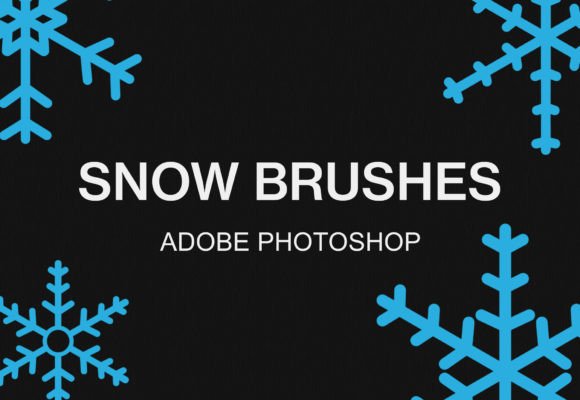
The core value of this bundle lies in its versatility and ease of implementation. It includes a comprehensive 21 Photoshop snowflake brushes pack designed specifically for Adobe Photoshop, yet it offers the added benefit of compatibility with GIMP. This cross-platform support ensures that regardless of your preferred software ecosystem, you have access to high-quality assets that behave predictably and look stunning. The bundle is delivered as a standard .ABR Photoshop brush file, a universal format that integrates seamlessly into your workflow without requiring complex conversions or third-party plugins.
Overcoming Design Challenges with Specialized Tools
Many creatives struggle with the "uncanny valley" of winter effects. When snow looks too uniform or pixelated, it breaks the immersion of the image. The goal for most users is to create depth and movement, simulating how snow falls in layers—some flakes close to the camera, sharp and detailed, while others blur into the background. Manually scaling and opacity-adjusting hundreds of elements is inefficient. The Photoshop Snowflake Brushes Bundle Pack addresses this need by providing pre-engineered variations. Each of the 21 brushes offers a different shape, size, and density, allowing you to build complex scenes with just a few strokes.
Furthermore, the need for speed is critical in professional environments. Deadlines for seasonal campaigns are often tight, and clients expect immediate visual impact. Using these brushes allows you to iterate quickly. You can test different snowfall intensities, from a gentle dusting to a heavy blizzard, in seconds. This flexibility empowers you to focus on composition and color grading rather than getting bogged down in the mechanics of drawing ice crystals.
Practical Applications and Creative Outcomes
The applications for this brush set extend far beyond simple photo overlays. Photographers can use the 21 Photoshop snowflake brushes pack to rescue images taken on cloudy days, adding a festive mood that was missing during the shoot. Graphic designers can incorporate these elements into typography, creating text that appears to be covered in fresh snow, which is particularly effective for holiday sale banners or event invitations.
Digital painters will find immense value in the texture variety. Because the brushes mimic real crystalline structures, they blend well with painted backgrounds, avoiding the "sticker" look that plagues lower-quality assets. You can layer multiple brushes with different opacities to create atmospheric perspective. For instance, using a larger, sharper brush for foreground elements and a smaller, softer brush for the background creates a convincing sense of three-dimensional space.
It is also worth noting how different users might approach this tool. A beginner might use the brushes strictly for overlay effects to quickly festive-ify a family portrait. In contrast, an advanced user might manipulate the brush dynamics within Photoshop—adjusting scattering, size jitter, and flow—to generate entirely new custom patterns based on the original 21 designs. The bundle serves as both a finished solution and a foundational resource for further experimentation.
Seamless Integration: How to Install and Use
One of the most frustrating aspects of downloading new resources is often the installation process. However, this bundle is designed with user-friendliness in mind. The developers have streamlined the procedure so you can start creating almost immediately after downloading. Below are the specific steps to get your Photoshop Snowflake Brushes Bundle Pack up and running on your preferred software.
How to Use the Brushes with Adobe Photoshop
For Photoshop users, the process is incredibly direct, taking advantage of the native .ABR file handling capabilities of the software.
- Unzip the File: Once you have downloaded the bundle, locate the compressed ZIP file on your computer and extract its contents. You will see the .ABR file inside.
- Double-Click the ABR File: Simply double-click on the extracted .ABR file. Your operating system should recognize this as a Photoshop brush file.
- Automatic Loading: Photoshop will automatically launch (if it isn't already open) and load the brushes into your Brush Preset panel. You do not need to navigate through menus or restart the application.
- Be Creative: Select the Brush Tool, scroll to the bottom of your preset list to find the new snowflake icons, and start painting on your canvas.
How to Use the Brushes with GIMP
GIMP users can also take full advantage of this bundle, though the installation requires manually placing the file in the correct directory. This ensures that the open-source software recognizes the Adobe format correctly.
- Locate the GIMP Folder: Search your local disks for the GIMP installation folder. This is often found under "Program Files" on Windows or within the Applications folder on macOS.
- Navigate the Path: Follow the specific directory path: GIMP 2 > share > gimp > 2.0 > brushes. This is the standard repository where GIMP looks for new brush definitions.
- Unzip the Download: Extract the contents of the downloaded ZIP file to access the .ABR brush file.
- Copy and Paste: Copy the .ABR file and paste it directly into the "brushes" folder you located in the previous step.
- Refresh and Create: Open GIMP or refresh the brushes dialog if the program is already running. The snowflake brushes will now appear in your list, ready for you to use. Be creative and experiment with the different dynamics settings available in GIMP.
Making the Most of Your Winter Assets
To truly maximize the potential of the Photoshop Snowflake Brushes Bundle Pack, consider combining these brushes with adjustment layers. Adding a slight Gaussian Blur to a layer of snowflakes can simulate depth of field, making them appear further away. Conversely, increasing the contrast on a foreground layer can make individual flakes pop against a dark background. Color grading is another powerful technique; tinting the snow layer slightly blue can enhance a cold, moonlit feel, while a warm yellow tint can mimic the glow of streetlights during a night storm.
Remember that less is often more. While it is tempting to cover an entire image in snow, strategic placement usually yields more professional results. Focus on areas where light naturally hits, or where wind would logically deposit snow. The 21 distinct variations in this pack allow you to avoid repetition, ensuring that no two flakes look exactly the same, which is key to maintaining realism.
Whether you are a seasoned professional looking to speed up your workflow or an enthusiast eager to learn new techniques, this bundle provides the necessary tools to achieve high-quality results. The ability to use these assets across both Photoshop and GIMP makes it a versatile addition to any digital artist's library. By simplifying the technical side of creating winter effects, you are free to focus on the artistic vision, turning ordinary images into captivating seasonal stories.
If you find value in these tools and are looking to expand your creative arsenal further, we encourage you to visit our shop for more brush bundles. We offer a wide range of specialized assets designed to solve common design problems and inspire new ideas, ensuring you always have the right tool for every project.